Scheduled orders
The customer picks the time, the kitchen starts at the right time
Someone who wants lunch ready at noon sets the time on the menu. The order shows up in the dashboard right away, but it only goes into the kitchen when the preparation time is left, and the ticket prints at that moment.
It comes turned off. You turn it on in Configurações and set the rules.
Simulator with sample data
The order for 7:30 pm goes into the kitchen at
6:40 pm
7:30 pm minus 30 min of preparation and 20 min of travel time.
The customer can pick that time: the first one available under these rules is 6:30 pm.
Example opening hours: 11 am to 11 pm. Same calculation as the server: agreed time minus preparation, plus travel time only for delivery.
From order to kitchen
Three moments, none of them manual
The customer schedules
At checkout, after choosing delivery or pickup, the options O quanto antes (as soon as possible) and Agendar (schedule) appear. When scheduling, the customer picks the day and a time from the list. The list only shows times the store really serves: it follows each day’s opening hours, special dates, the store’s time zone and how full each slot is.
The order waits in a separate strip
It reaches the dashboard right away, in the Agendados strip, outside the kitchen columns. Stock is already reserved. Nothing plays or prints yet, so nobody starts an order that will only be picked up in the evening.
The time comes and it goes in on its own
At the agreed time minus preparation (and travel time, if it is a delivery), the order moves to the kitchen, the alert plays and, with automatic printing on, the ticket prints. If the team wants to move it up, there is the Liberar agora button (release now), and Mudar horário (change time) moves the agreed time only among valid times. Neither button shows for the waiter.
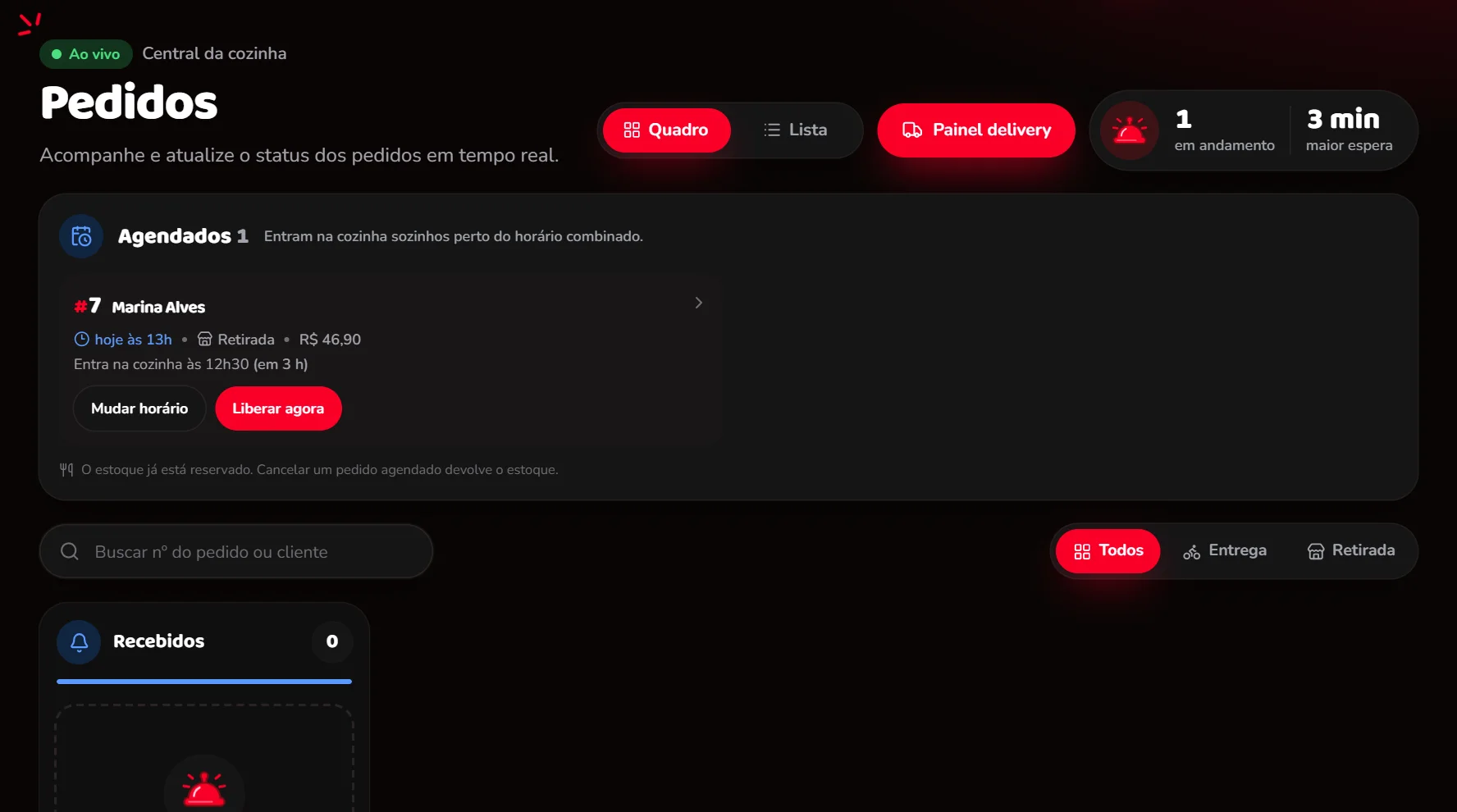
In the dashboard (interface in Portuguese): Configurações › Pedidos agendados (regras) or Vendas › Pedidos (faixa Agendados)
You are in charge
Seven rules, each with a default
The values below are what the feature comes with when it is turned on. All of them can be changed in Configurações › Pedidos agendados, by an administrator or manager.
- Minimum notice60 min
- How long before the time the customer has to order. It never counts for less than the preparation time (plus travel time, for delivery).
- Days ahead7 days
- How far ahead the customer sees the schedule, from 1 to 30 days.
- Interval between times30 min
- Times come every 15 minutes, every 30 minutes or every hour.
- Preparation time30 min
- How long the kitchen takes to have the order ready.
- Delivery travel time20 min
- Extra time that only counts for deliveries. Pickup does not use it.
- Limit per time slotno limit
- How many scheduled orders fit in the same time slot. A full slot shows as unavailable.
- Accept while the store is closedon
- With the store closed right now, the customer can still schedule for a time when it will be open.
No surprises
What the server checks on every order
The menu only sends the chosen time. The server decides whether it is valid, at the very moment it creates the order, with its own clock and in the store’s time zone. A made-up, expired, off-grid or full time is refused.
Two people competing for the last spot in the same time slot never both get through: only one does. And changing the rules afterwards does not touch orders that were already agreed.
- The time is the server’s. The customer’s phone clock does not decide whether the store is open.
- Manual pause always blocks. With the store paused, nobody can schedule, even with the closed-store option on.
- Turning it off deletes nothing. Orders already scheduled continue and go into the kitchen at their time.
How stock and cancellation work
Stock is reserved when the order is created. Canceling returns the quantity, only once, as with any other order.
What if the store is closed right now?
It depends on a rule of yours. With Aceitar com a loja fechada (accept while the store is closed) on, which is the default, the customer schedules for a time when the store will be open, even if it is set to block orders outside opening hours. With it off, scheduling follows the store’s state.
Questions about this feature
Is the customer notified if the team changes the time?
Does the scheduled order show up with the others in the kitchen?
Can I schedule for another day?
Do I need to turn something on for the store to receive scheduled orders?
To check the details
Feature sheet for this page
Requirements, limits and the path in the dashboard for each feature. Open the ones you need.
Scheduled ordersReady to use
The customer picks a day and time. The order reaches the dashboard right away and goes to the kitchen on its own at the right moment.
Works with the restaurant’s own setup.
What it does
- Store rules: minimum and maximum lead time, interval between time slots, preparation time, travel time and a limit of orders per slot.
- A “Scheduled” lane in the dashboard, with “Release now” and “Change time”.
- When the order enters preparation, the alert plays and the ticket prints if automatic printing is on. Stock is reserved from the moment of the order.
What must be ready first
- Store hours registered.
- The feature turned on in Settings (it comes off).
Limits
- The store’s manual pause always blocks new scheduled orders.
- If the team changes the time, notifying the customer is manual.
- It applies only to orders placed through the menu.
In the dashboard (interface in Portuguese): Configurações › Pedidos agendados or Vendas › Pedidos (faixa Agendados)
Related: Opening hours and store status, Live order center, Automatic ticket printing
See also
- Order systemLive order center as a board or list, with a sound alert, waiting time, manual table, counter and phone orders, team and reports.
- Digital menuOnline menu with its own link, the store’s visual identity, options and add-ons, promotions, cart and live opening status.
- Automatic printingA Windows program that prints the ticket on the restaurant’s thermal printer, separates sectors, reprints a copy and never repeats an order when in doubt.
- On-site orders with QR CodeA dedicated address and a stable QR Code for orders placed from the table, a menu of its own for the dining room team, a waiter profile and access statistics without cookies. One QR Code per store, not per table.