Payments
The money lands in your store’s account
You connect a provider, Asaas, Mercado Pago or Stripe, with your own keys. The customer pays on the provider’s page and the order only becomes paid once the provider confirms. Anyone who does not want online payment keeps cash, Pix and card machine on delivery.
PromtuFood charges no commission per order. The online payment fee is the one from the provider you choose.
Online payment
How an order becomes paid
When the customer chooses to pay online, the menu marks nothing as paid. The confirmation comes from the provider, through a notice that PromtuFood only accepts with proof that it is genuine. Walk through the steps:
Step 1 of 5
The customer places the order
At checkout they choose to pay online. The order is created in PromtuFood as waiting for payment and already shows in the dashboard with that badge, so the team knows the money has not come in yet.
Step 2 of 5
The charge is created in the store’s account
PromtuFood asks the provider for a charge with the order amount, using the keys the restaurant saved. The customer is taken to the provider’s own payment page.
Step 3 of 5
The customer pays on the provider’s page
Pix or card, depending on the provider chosen. Card details are typed on the provider’s page, not on the store’s menu.
Step 4 of 5
The provider notifies PromtuFood
The notice reaches a PromtuFood address and only counts if it arrives authenticated: with the Asaas token, the Mercado Pago signature or the Stripe signature. A notice without that proof is rejected.
Step 5 of 5
PromtuFood checks and marks it as paid
The amount is compared with the order’s (a difference of 1 cent at most) and the status is checked. With Asaas and Mercado Pago, PromtuFood also looks up the payment at the provider using the store’s key. Only then does the order become paid, and the same notice repeated creates nothing twice.
What does not confirm a payment: the customer coming back from the provider to the menu, or a notice without a valid token or signature. In those cases the order stays as waiting for payment.
What each provider asks for
You connect one at a time, in Settings, Payments. Pick one to see the keys, what to set up at the provider and how the payment is confirmed.
Accepts: Pix and card, on an Asaas payment page.
What you need to have
- The API key of the store’s Asaas account.
- The environment: test (sandbox) while you experiment and production once the key belongs to the real account.
- A webhook token that you make up yourself, with 32 characters or more.
What to do at the provider
- Register the webhook address shown on the payments screen, which has a copy button.
- Paste the same token under Webhooks, in the authentication token field.
How the payment is confirmed: The notice is authenticated by the token, and PromtuFood also looks up the payment at Asaas with the store’s key before marking it as paid.
- A refund only counts as done when Asaas confirms it. To follow refunds made directly at Asaas, also turn on the refund notices in the webhook.
Accepts: Pix, card and Mercado Pago balance, through Checkout Pro.
What you need to have
- The Access Token from the production credentials.
- The webhook secret signature. The screen marks it as optional, but without it the notice is rejected and the integration stays blocked.
What to do at the provider
- Register the notification address shown on the screen under Your integrations, Webhooks.
- Copy the secret signature that Mercado Pago generates and paste it into PromtuFood.
How the payment is confirmed: The notice must carry a valid signature. The confirmation always comes from looking up the payment at Mercado Pago, with the store’s Access Token.
- A refund only counts as done when Mercado Pago confirms it. Through the integration, Mercado Pago only refunds up to 180 days after approval; after that, the approver refunds at Mercado Pago and records it on the order.
Accepts: Card only. There is no Pix through Stripe.
What you need to have
- The secret key of the Stripe account.
- The webhook secret, which starts with whsec_.
- A menu on a secure address (HTTPS), which Stripe requires to deliver notices.
What to do at the provider
- Create an endpoint at Stripe with the address the screen shows.
- Select the checkout.session.completed event and, to follow refunds, refund.updated and charge.refunded.
How the payment is confirmed: The notice is authenticated by Stripe’s signature. PromtuFood makes no extra lookup: the order is marked as paid when the completed payment event arrives with a valid signature.
- A refund only counts as done when Stripe confirms it. To follow refunds, also select the refund.updated and charge.refunded events on the endpoint.
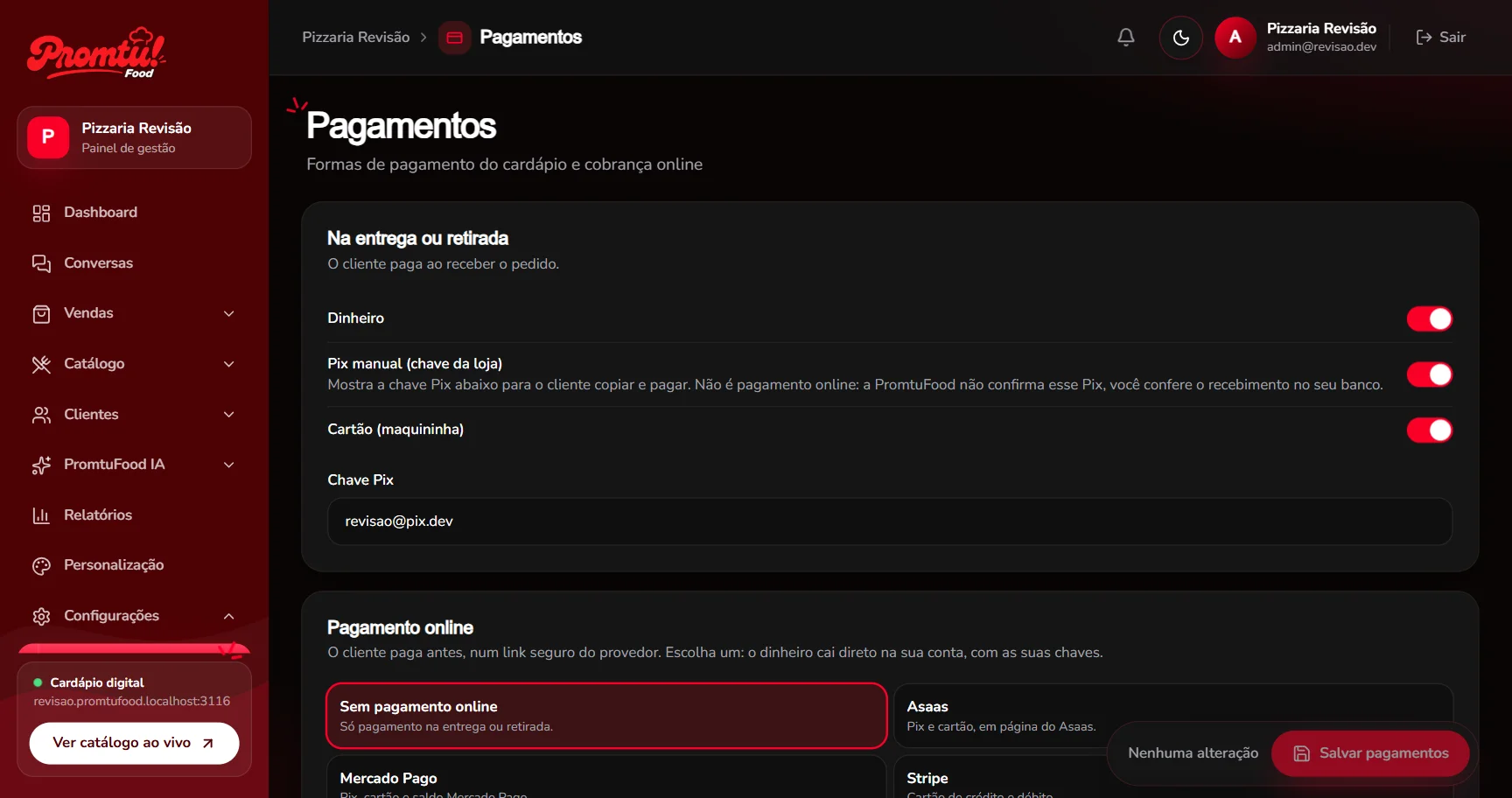
In the dashboard (interface in Portuguese): Configurações › Pagamentos › Pagamento online
On delivery or pickup
Those who prefer to pay on the spot have a place too
Cash, Pix with the store’s key and card on the machine stay available alongside online payment, and you turn each one on separately. The customer chooses at checkout, and the choice changes what the team sees in the dashboard.
- Pix with the store’s key shows the key with a copy button. You check it yourself, at the bank: the order never becomes paid on its own.
- Card on the machine is a notice for whoever delivers. PromtuFood does not connect to the card machine.
- On the delivery card of the delivery board you see how much to collect and how, or “Paid online: do not collect”.
In the dashboard (interface in Portuguese): Configurações › Pagamentos › Na entrega ou retirada
For the store
Waiting for paymentThe order arrives with the Waiting for payment badge and becomes Paid when the provider confirms.
If someone is about to accept the order before the confirmation, the dashboard asks for an extra confirmation. The delivery card shows "Paid online: do not collect".
Care with the money
What PromtuFood checks before marking an order as paid
Authenticated notice
Without the Asaas token or the Mercado Pago and Stripe signature, the notice is rejected. The browser coming back does not count as proof.
Amount checked
The amount paid has to match the order’s, with a difference of 1 cent at most.
A repeated notice does not duplicate
The provider may resend the same notice and events arrive out of order. The order is not paid twice and does not go back to an earlier status. If the notice is not saved, the provider tries again.
Keys stored encrypted
The credentials stay encrypted on the server. The screen only shows whether each one is configured, never the value.
What if the customer pays and closes the page?
The payment happens at the provider, so closing the tab does not undo it. When the provider sends the notice, the order changes to paid by itself, and the customer’s tracking screen reflects it.
If the notice takes a while, the order stays as waiting for payment. The team can check the payment status at the provider itself.
Before you turn it on
What is worth knowing
Questions about this feature
Does the money go through PromtuFood?
Does PromtuFood charge a commission on orders?
Can I accept Pix through one provider and card through another?
Do I need technical knowledge to turn it on?
How do I issue a refund?
To check the details
Feature sheet for this page
Requirements, limits and the path in the dashboard for each feature. Open the ones you need.
Payment on delivery or pickupReady to use
Cash, Pix with the store’s key and card on the card machine, chosen by the customer at checkout.
Works with the restaurant’s own setup.
What it does
- Turn each method on or off. Pix appears with a button to copy the store’s key.
- The delivery card option shows the courier how much to collect and how.
What must be ready first
- Administrator or manager profile.
Limits
- Pix with the store’s key is checked by the restaurant in its own bank: the order does not become “paid” by itself.
- No change calculation, receipt or cash register.
In the dashboard (interface in Portuguese): Configurações › Pagamentos
Related: Online payment into the store’s account, Delivery board
Online payment into the store’s accountNeeds setup
The restaurant connects Asaas, Mercado Pago or Stripe with its own credentials and the money goes straight to its account.
Depends on an outside service, account or equipment.
What it does
- One provider at a time. Asaas and Mercado Pago accept Pix and card; Stripe, card only.
- The order only becomes “paid” when the provider confirms through an authenticated notice and PromtuFood checks the amount and status. The browser return alone does not confirm.
- Credentials are stored encrypted. The screen shows only whether they are set.
- Canceling an order paid online opens a refund request. An administrator or an authorized manager approves it, never the person who asked for it (the exception is the only authorized person in the store, with a recorded justification). After approval there is a 5-minute wait during which it can be undone. Only then does PromtuFood ask the provider for a full refund and follow it until the provider confirms.
What must be ready first
- An account with the provider and its keys.
- Register the notice address shown on the screen at the provider (in Asaas, with a token of 32 characters or more; in Mercado Pago, the secret signature).
Limits
- PromtuFood only makes full refunds, and they depend on the provider and its deadlines. When the provider does not allow a refund through the integration, the approver refunds at the provider and records it on the order. PromtuFood does not generate a receipt.
- The fee belongs to the provider.
- It has not yet been validated with real provider accounts.
In the dashboard (interface in Portuguese): Configurações › Pagamentos
Related: Payment on delivery or pickup, Discount coupons and free shipping
See also
- Delivery managementDeliveries by city and neighborhood with their own fee, estimated time and minimum order, free shipping, pickup, a deliveries board and tracking for the customer.
- Order systemLive order center as a board or list, with a sound alert, waiting time, manual table, counter and phone orders, team and reports.
- Automatic customer serviceA virtual attendant from PromtuFood IA on WhatsApp and in the menu chat that checks the real menu, builds the cart, reports the order status and hands the conversation to the team.