Digital menu
Digital menu for restaurants, styled to match your store
Customers open a link, see your products with photos, build their order and know right away whether you are taking orders. No app to download and no commission per order.
Opens in the browser on a phone or a computer. The menu itself is in Brazilian Portuguese.
What customers find
From link to placed order, with nothing to install
Each store gets an address of its own, like yourrestaurant.promtufood.com.br, short enough for an Instagram bio or a WhatsApp status. Customers go through these steps on the same page.
- 1
Header with the store status
Logo, banner, tagline and whether the store is open, about to close, closed or has orders paused.
- 2
Search and category tabs
Search by product name and description, and tabs to jump between categories, in the order the store chose.
- 3
Product with options
Photo, description, price and, when set up, option groups, quantity and a note of up to 200 characters.
- 4
Cart and checkout
Name and phone, delivery or pickup, address by city and neighborhood, payment method and, if the store turns it on, a scheduled time.
- 5
Order tracking
The order is kept on the device and the screen shows the current step. The menu can also be installed from the browser.
Price, delivery fee, coupon, stock and hours are recalculated on the server when the customer confirms. Tapping the button twice does not create two orders.
Visual identity
Pick the colors and watch the menu change instantly
On the Personalização screen you upload your logo, choose an illustrated banner or a photo of your own, and set four colors. The explorer below follows the same rules as the published menu: change the colors, hover over each one and see what it affects. The tertiary color, for example, is where the illustrated banner’s gradient ends and the background of the photo banner while the image loads.
Your brand color on the menu: buttons, highlighted prices, the selected category, the cart and the order steps.
The 15 places where it appears
- The + button that adds a product
- Discount badge (-20%) and promotional price
- Selected category in the category bar
- “View cart” bar on phones
- Item count on the cart, in the header
- Header banner when it is illustrated (gradient of the color)
- Delivery, pickup and fee icons below the banner
- Photo area background and illustrated dish, on products without a photo
- “Add” and + / - buttons in the product window
- Selected option (add-ons, delivery or pickup)
- “Continue” and checkout buttons
- Order steps and progress bar
- Order total and quantities (2×)
- Order number on the confirmation
- Field outline when the customer clicks into it
With no choice, the menu uses PromtuFood red.
The background of the whole menu. Text, lines and shadows adjust on their own to stay readable.
The 7 places where it appears
- Page background
- Fixed header and category bar
- Product cards, header info, cart and checkout
- Search field and round header buttons
- Text color (white on a dark background, dark on a light one)
- Lines and card borders
- Success, warning and error messages, and shadows
With no choice, customers see the menu in the light or dark theme of their device. With a color, the background is always yours.
The soft background of small highlights: badges, circled icons, the selected option in scheduling and the customer’s “My account” area.
The 7 places where it appears
- “Required” badge on product option groups
- Selected “Now” or “Schedule” option on the order
- Close button on windows
- “This device” badge and circled icons in My account
- Favorite address and selected address
- Icons in the “My orders” list
- Icon of the site’s support assistant
With no choice, the menu uses a very light tone of the main color (or a dark tone of it, in the dark theme).
Product cards and photos use the lightened main color, not this one.
The dark support color of the banner: the illustrated banner’s gradient ends in it, and the photo banner uses it as the background while the image loads.
The 2 places where it appears
- End of the illustrated banner gradient (the banner text color adjusts on its own)
- Photo banner background, while the photo loads
With no choice, the gradient ends in a slightly darker tone of the main color.
Outside the banner, this color is not used anywhere else on the customer’s menu.
The color you choose is never changed by the system. Only the text on top of it switches from white to dark when needed, and the warnings show when a combination makes reading harder.
 CalabresaCalabresa, cebola e molho da casa
Hover over a color, or tap “Show where it appears”, to see where it is used.
Logo and banner with framing
JPEG, PNG or WebP up to 5 MB. On a photo banner, framing for computers and for phones is adjusted separately, with zoom and darkening from 0 to 80%.
Preview before saving
The preview uses your real products and shows both the light and dark themes. A button restores the original look and removes the banner.
What does not change
There is no font swap, layout change or section reordering. The framing adjustment applies to the logo and the banner. The product photo appears as it was uploaded.
In the dashboard (interface in Portuguese): Personalização
Hours and status
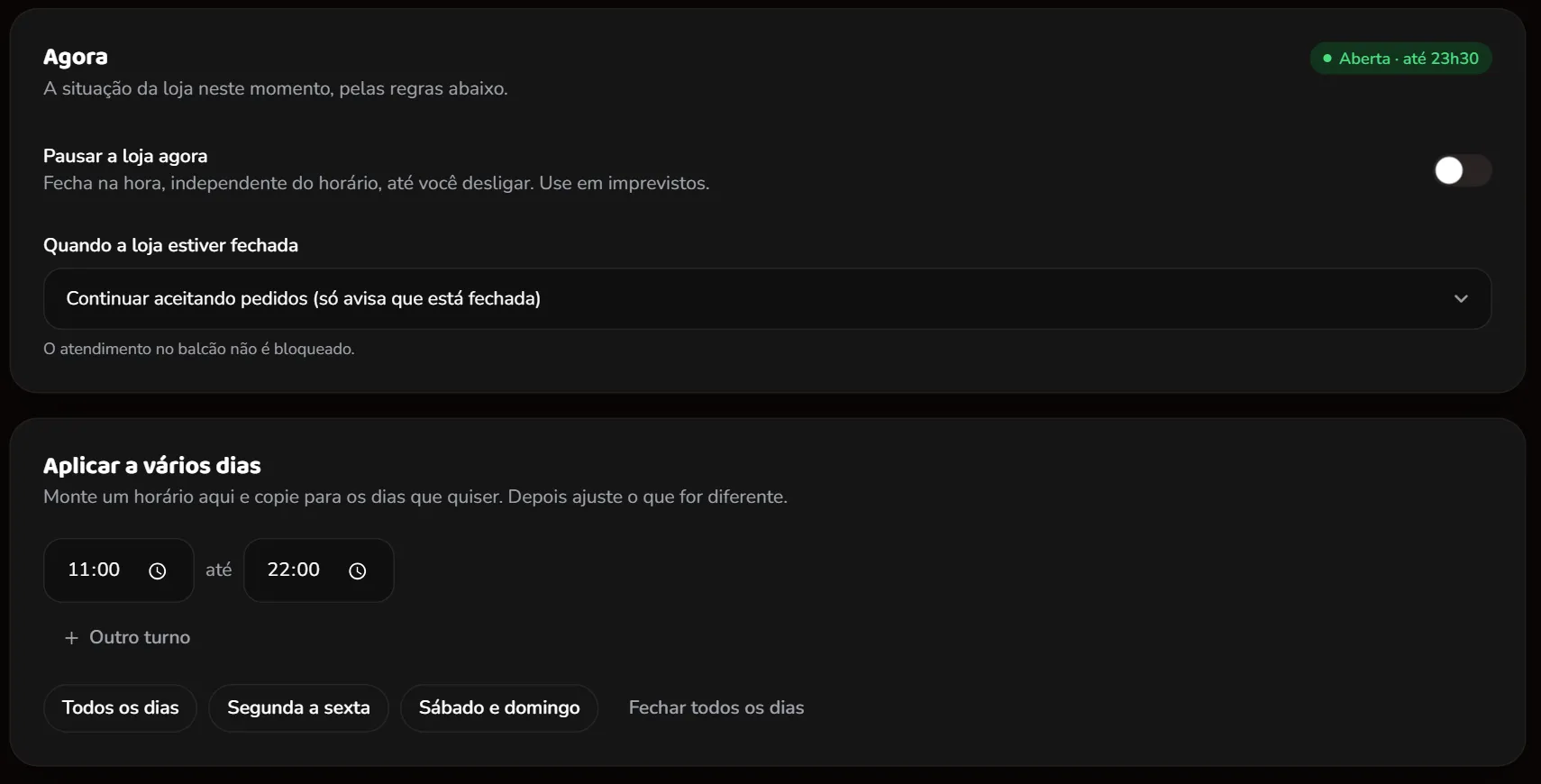
Open, closing soon or paused: customers know before they order
The top of the menu shows the store status and updates by itself. Try the simulator: it runs the same calculation as the menu, with the texts customers see. On the real menu, the time comes from the server, in the store’s time zone (Brazil has five), never from the customer’s device clock.
Example week: Monday to Saturday, lunch from 11 am to 2 pm and dinner from 6 pm to 11 pm. Sunday, 11 am to 4 pm.
What customers see at the top of the menu (shown in Portuguese, as on the real menu):
Today: 11h–14h18h–23h
On a phone, the menu shows the status and today’s shifts; the day line appears only on a computer.
You set up the week once
- More than one shift per day, like lunch and dinner, and hours that run past midnight (6 pm to 2 am, for example).
- Special dates for holidays and events, open with different hours or closed, without touching the week.
- Outside opening hours you choose: the menu keeps taking orders and just says the store is closed, or it blocks new orders. Orders entered by the team in the dashboard ignore the schedule.
- Manual pause with a message of up to 140 characters. It lasts until you turn it off and always blocks new orders.
In the dashboard (interface in Portuguese): Configurações › Horários
Products and orders
Options with rules, the way your kitchen works
Each product has a name, description, price and one photo, and can be paused with a tap. Option groups define what the customer has to choose. Tick the options below: the minimum and maximum apply per group, each option has its own price and adds to the product price. When there is a promotion, it replaces the base price and the options keep adding on top.
- Three group types: required choice, add-ons and combo items, with a minimum and maximum from 0 to 20.
- Categories that you create inside Products: rename them, drag to reorder, hide them from the menu and delete them without losing any product. No plan limits the number of categories; each store can have up to 500, the same number for everyone.
- Promotions with an end date: “from and to” prices, shortcuts from 10% to 30%, optional start and end. The menu shows the discount and the old price crossed out.
- Cart suggestions, drawn from your own menu by a fixed rule: a drink, a dessert, a side.
- Cart coupon, as a percentage, a fixed amount or free delivery, checked again at checkout.
- Optional stock per product, deducted automatically when the order comes in.
Payment methods
On delivery: cash, Pix with the store’s key and card on the card machine. Online: Pix and card through a provider the restaurant connects with its own credentials, and the money goes straight to its account. Details are on the page about online payments.
In the dashboard (interface in Portuguese): Catálogo › Produtos or Vendas › Cupons
Want customers to spin the product and see it on their own table? It is on the page about 3D products and augmented reality.
Customer account
Returning customers order faster
- Sign-in by WhatsApp: the customer receives a 6-digit code, valid for 5 minutes and single-use, and confirms in the same browser.
- Up to 20 saved addresses, with a nickname, a reference and one favorite. Checkout warns if the store does not deliver to that address.
- My orders for that store and Order again: the customer picks any past order, and the system checks today’s price and availability.
- Data in their hands: customers download their own data and delete their account at that store. Creating an account is optional; a name and phone are enough to order.
Privacy and terms
Each store with its own policy, at its own address
The menu publishes the store’s own /privacidade and /termos pages, from a base template that the restaurant completes with its privacy contact, an optional data protection officer, a link to its own policy and its own conditions. The menu links to these documents and checkout shows a notice. The text is not legal advice, and the restaurant is responsible for the final content. These pages are in Portuguese.
In the dashboard (interface in Portuguese): Configurações › Privacidade e termos
Own domain
The menu and the site at your own .com.br address
.com.br domain
To have the menu and the site at your own .com.br address there is the annual own-domain package. It already includes the Premium plan and the custom website (it is not an add-on), and its price appears on the plans page when the offer is open. The domain is registered in the customer’s name, with the customer’s own tax ID, and PromtuFood handles the technical side for as long as the subscription lasts. The current address keeps working until the new one is live.
- 1Payment confirmedThe Pix payment for the domain was made.
- 2Approved by the teamThe team checks the chosen name.
- 3RegisteredThe team registers the .com.br name in the customer’s name.
- 4DNSThe team points the address to the menu.
- 5HTTPSThe security certificate is issued and renewed automatically once the DNS is correct.
- 6ValidatedThe system actually checks DNS and HTTPS.
- 7ActiveThe menu starts opening at the new domain.
In the dashboard (interface in Portuguese): Minha PromtuFood › Loja › Domínio próprio
Premium plan
A site with a look of your own, built by our team
On the Premium plan, the restaurant describes what it wants in a form (type of business, style, references, colors, features and contact) and follows the status of the request: waiting for contact, approved, in development, delivered or canceled. The team builds the site outside the system and publishes it as a static package, with a private preview and a quick return to the previous version.
The site talks to the system through the public API: it reads the store, delivery areas and products, quotes the cart and creates the order, and the price is still calculated by the server.
In the dashboard (interface in Portuguese): Personalização › Site personalizado
Questions about this feature
Can customers order while the store is closed?
How do I pause orders during a rush?
Do customers need an account to order?
Can I use my own domain?
Do I need professional photos?
Does the menu come in other languages, or with an ad pixel?
To check the details
Feature sheet for this page
Requirements, limits and the path in the dashboard for each feature. Open the ones you need.
Menu with its own linkReady to use
A menu in the browser, with no app, at an address that belongs to the store, with search, categories, cart, checkout and order tracking.
Works with the restaurant’s own setup.
What it does
- Customers search, pick options, build the cart and check out for delivery or pickup, with a name and phone number.
- Price, fee, coupon, stock and opening hours are recalculated on the server for every order.
- The top of the menu shows whether the store is open, closing soon, closed (with the next opening) or has orders paused.
- Customers follow the order on their own screen and can install the menu from the browser.
What must be ready first
- A store published in the dashboard, with at least one available product.
Limits
- Brazilian Portuguese only.
- Pausing or editing a product can take up to 1 minute to disappear from the menu (checkout refuses it right away).
- A product with zero stock still shows.
- There are no favorites, public reviews, share button or offline mode.
In the dashboard (interface in Portuguese): Catálogo › Produtos or Personalização
Related: Visual identity of the menu, Products, options, combos and promotions, Opening hours and store status
Visual identity of the menuReady to use
Logo, banner and four colors (main, background, secondary and tertiary) with a preview of the real menu before saving.
Works with the restaurant’s own setup.
What it does
- Logo and banner (illustrated or your own photo) with separate framing for computer and phone, and a darkening level for the photo.
- Four colors, with an explanation of where each one appears, examples that change instantly and contrast warnings. The color you pick is never altered.
- A preview of the menu with the store’s own products, in light and dark themes.
What must be ready first
- Administrator or manager profile.
Limits
- It does not change the font, layout or order of sections.
- A fixed background color locks the menu to light or dark.
In the dashboard (interface in Portuguese): Personalização
Related: Menu with its own link, Own domain (annual package)
Products, options, combos and promotionsReady to use
Product registration with photo, option and add-on groups, combos and a promotional price with an end date.
Works with the restaurant’s own setup.
What it does
- Register a product with name, description, category, price and photo, and pause or resume it with one tap.
- Option groups with a minimum and a maximum: required choice, add-ons or combo items. Each option has its own price, added to the product price.
- A promotional price with optional start and end; the menu shows the discount and the old price crossed out.
What must be ready first
- Administrator or manager profile.
Limits
- One photo per product. There is no spreadsheet import, subcategories, sale by weight or manual ordering.
- Sizes (S, M, L) work as an add-on to the base price.
In the dashboard (interface in Portuguese): Catálogo › Produtos
Related: Menu categories, Stock control, 3D products and augmented reality, Discount coupons and free shipping
Menu categoriesReady to use
Categories created by the restaurant inside Products, with their own order, an option to hide them and a delete that never erases products.
Works with the restaurant’s own setup.
What it does
- Create, rename and delete categories, including creating a new one without leaving the product form.
- Set the order of the menu tabs by dragging or with the up and down arrows, which also work on the phone.
- Hide a category: it and its products disappear from the menu, the search, the cart and orders placed by customers, without erasing anything.
- Delete while choosing where the products go: another category or no category. No product is erased.
What must be ready first
- Administrator or manager profile.
Limits
- Each product belongs to a single category. There are no subcategories.
- No plan limits the number of categories. To keep the system stable, each store can have up to 500, the same for every plan.
- The team still sees hidden categories in manual counter orders, with a notice in the name.
- If the category was linked to a print sector, the link disappears on deletion, and the system warns before confirming.
In the dashboard (interface in Portuguese): Catálogo › Produtos › Categorias
Related: Products, options, combos and promotions, Automatic ticket printing
Opening hours and store statusReady to use
Shifts per day, special dates, manual pause and the store’s time zone. The menu shows the real status, always by the server clock.
Works with the restaurant’s own setup.
What it does
- Several shifts per day (including ones that run past midnight), special dates and “Pause the store now” with a message.
- Choose whether, while the store is closed, the menu keeps accepting orders or blocks them.
- The menu works out open, closing soon and closed from the server time in the store’s time zone, not from the device clock.
What must be ready first
- Administrator or manager profile.
Limits
- No different hours per order type and no scheduled pause.
- Orders entered by the team ignore the hours.
In the dashboard (interface in Portuguese): Configurações › Horários
Related: Scheduled orders, Menu with its own link
Customer account on the menuNeeds setup
Customers sign in with a code sent on WhatsApp, save addresses, see their orders at that store and order again.
Depends on an outside service, account or equipment.
What it does
- Up to 20 saved addresses, with a favorite and a reference point.
- “My orders” and “Order again”, checking today’s price and availability.
- Download your own data and delete the account at that store.
What must be ready first
- A WhatsApp channel for sending the code, set up by PromtuFood. Without it nobody can sign in (ordering as a guest still works).
Limits
- The account is per store. WhatsApp only, no SMS or email.
- No real code delivery has been validated yet.
Store privacy and termsReady to use
Each store publishes its own privacy policy and terms on the menu, with the restaurant’s privacy contact.
Works with the restaurant’s own setup.
What it does
- The pages /privacidade and /termos at the store’s address, built from a base template that the restaurant completes.
- A link to these documents on the menu and a notice at checkout.
What must be ready first
- Administrator or manager profile.
Limits
- The template is not legal advice; the restaurant is responsible for the final text.
In the dashboard (interface in Portuguese): Configurações › Privacidade e termos
Related: Customer account on the menu
Own domain (annual package)Needs setup
The menu at the restaurant’s own .com.br address, purchased through the annual own-domain package.
Depends on an outside service, account or equipment.
What it does
- Get the annual own-domain package, which already includes the Premium plan and the custom website, and follow each step in the Minha PromtuFood account.
- The current address keeps working until the new one is live.
What must be ready first
- Financial permission on the account. The package replaces the regular Premium subscription; it is not added to it.
Limits
- The domain is registered by hand by the team, with no promised deadline. DNS and HTTPS are set up and checked by the system.
- The domain is registered in the customer’s name and only .com.br exists. Renewing the registration is manual and separate from the security certificate, which is automatic.
- Buying through the website only opens after the payment has been validated; until then the package is arranged over WhatsApp.
In the dashboard (interface in Portuguese): Minha PromtuFood › Loja › Domínio próprio
Related: Visual identity of the menu, Custom website (Premium plan)
Custom website (Premium plan)Needs setup
A website with an exclusive look, built by the PromtuFood team and connected to the system through a public API.
Depends on an outside service, account or equipment.
What it does
- The restaurant describes what it wants in a form and follows the status of the request.
- The team publishes the site as a static package, with a private preview and a quick return to the previous version.
What must be ready first
- The Premium plan and an active subscription.
Limits
- It is a quoted service, with no promised deadline, except in the annual own-domain package, which already includes it. There is no site builder or theme editor.
In the dashboard (interface in Portuguese): Personalização › Site personalizado
Related: Own domain (annual package), Visual identity of the menu
See also
- 3D products and augmented reality3D models of products made by PromtuFood IA from one photo, with a viewer on the menu and augmented reality on compatible phones. One photo only, approximate size, usage charged to the PromtuFood IA wallet.
- Order systemLive order center as a board or list, with a sound alert, waiting time, manual table, counter and phone orders, team and reports.
- Automatic printingA Windows program that prints the ticket on the restaurant’s thermal printer, separates sectors, reprints a copy and never repeats an order when in doubt.
- Scheduled ordersThe customer picks a day and time on the menu. The order shows in the Scheduled lane and goes to the kitchen at preparation time, with lead time, interval and limit per time slot configurable. Off until the store turns it on.