Order system
Every restaurant order on the same screen
What comes in through the online menu and what the team writes down at the counter, at the table or over the phone goes to the same center, live, with each customer’s waiting time. On the other side of the shift, stock, coupons, reports and team live in the same dashboard.
The center
It arrives, it shows up, it moves through the steps
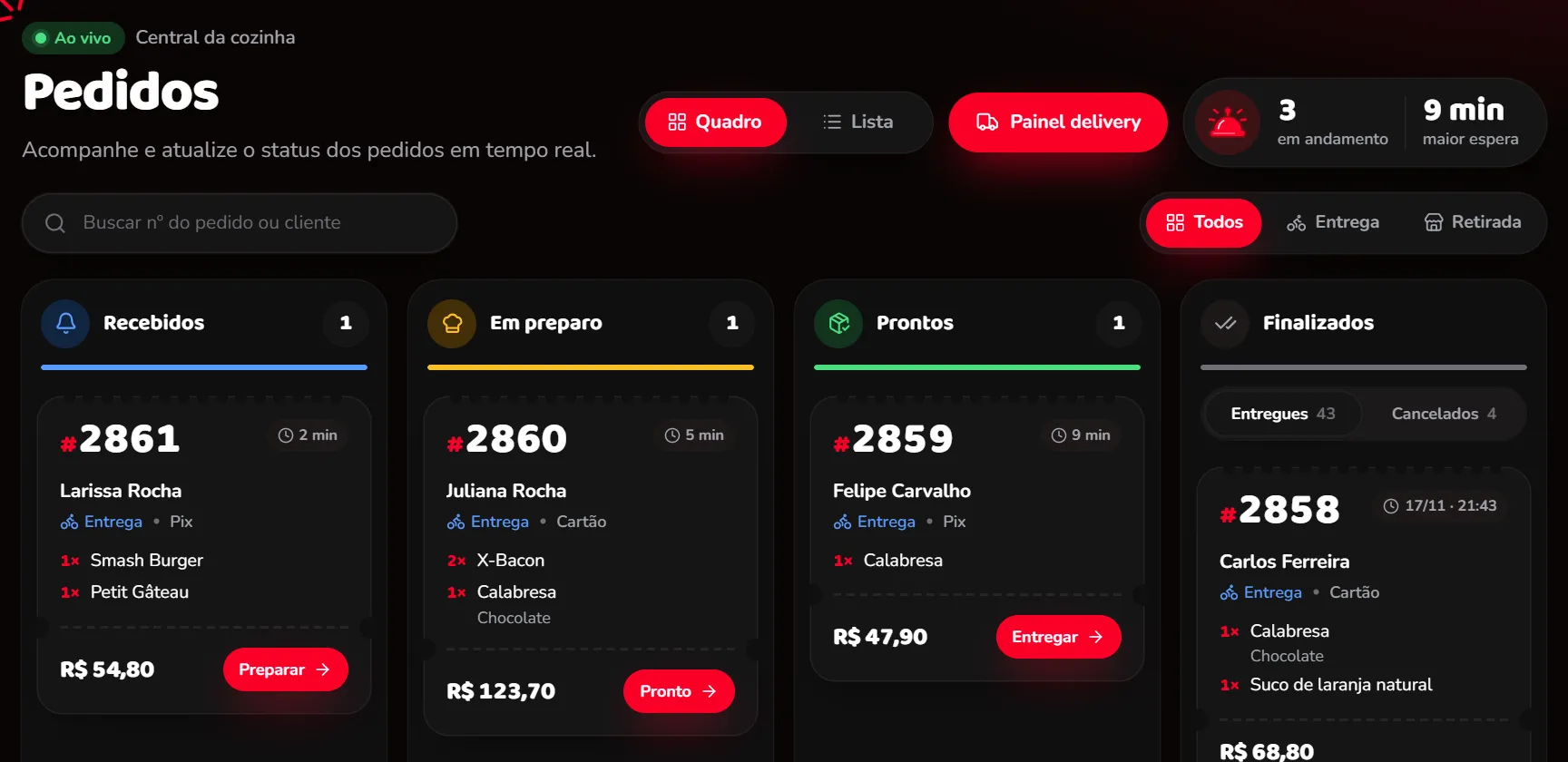
Delivery and pickup orders land in Received on their own, without reloading the screen. Try it below: time is sped up, new orders arrive from time to time and each card changes color as the wait grows. You can advance, go back one step and finish.
In progress4
Longest wait21 min
Paused
Received 1
- #10442 min
Pickup · 4 items
In preparation 2
- #104212 min
Delivery · 3 items
- #10436 min
Delivery · 1 item
Ready 1
- #104121 min (attention)
Pickup · 2 items
Completed 0
- No orders
Example with sped-up time: 1 second equals 1 minute. The counter turns yellow at 15 minutes and red at 30.
Alert while the screen is open
Each new order plays a beep and shows the Novo pedido chegou notice (new order received), as long as the center is open in the browser. Orders are kept while the screen is closed and show up as soon as someone opens it. A scheduled order also plays when it is time to prepare it.
Waiting time at a glance
The counter on each card turns yellow at 15 minutes and red at 30. It is only the color: the dashboard does not message the customer or produce a delay report. The top shows the number of orders in progress and the longest wait.
No misclicks
An order goes back at most one step, finishing asks for confirmation, and so does accepting an order with an online payment still pending. There is protection against conflicts when two people edit the same order at the same time.
Board, list and search
Board or list, saved for each person. On a computer, drag the card or use the next-step button; on a phone, each step becomes a tab. Search by number or name and filter between delivery and pickup. When opened, the screen loads the 50 most recent orders.
In the dashboard (interface in Portuguese): Vendas › Pedidos
There is no formal accept or reject step: moving an order to In preparation is the same as accepting it. To reject, the order is canceled from its details, which returns the stock. If the order was paid online, canceling it opens a refund request that an authorized person (an administrator or a manager with permission) has to approve. In the dashboard the columns are called Recebidos, Em preparo, Prontos and Finalizados.
Other paths to the same dashboard
Orders do not always come from the same place
- Scheduled ordersThe customer picks the time and the order goes into the kitchen on its own, at the right moment.See how it works
- On-site ordersQR Code to order from the table, a separate menu for the dining room team and a waiter profile.See how it works
- Manual ordersCounter, table and phone, entered by the team in the same system.See just below
Counter, table and phone
An order that did not come through the site also goes into the system
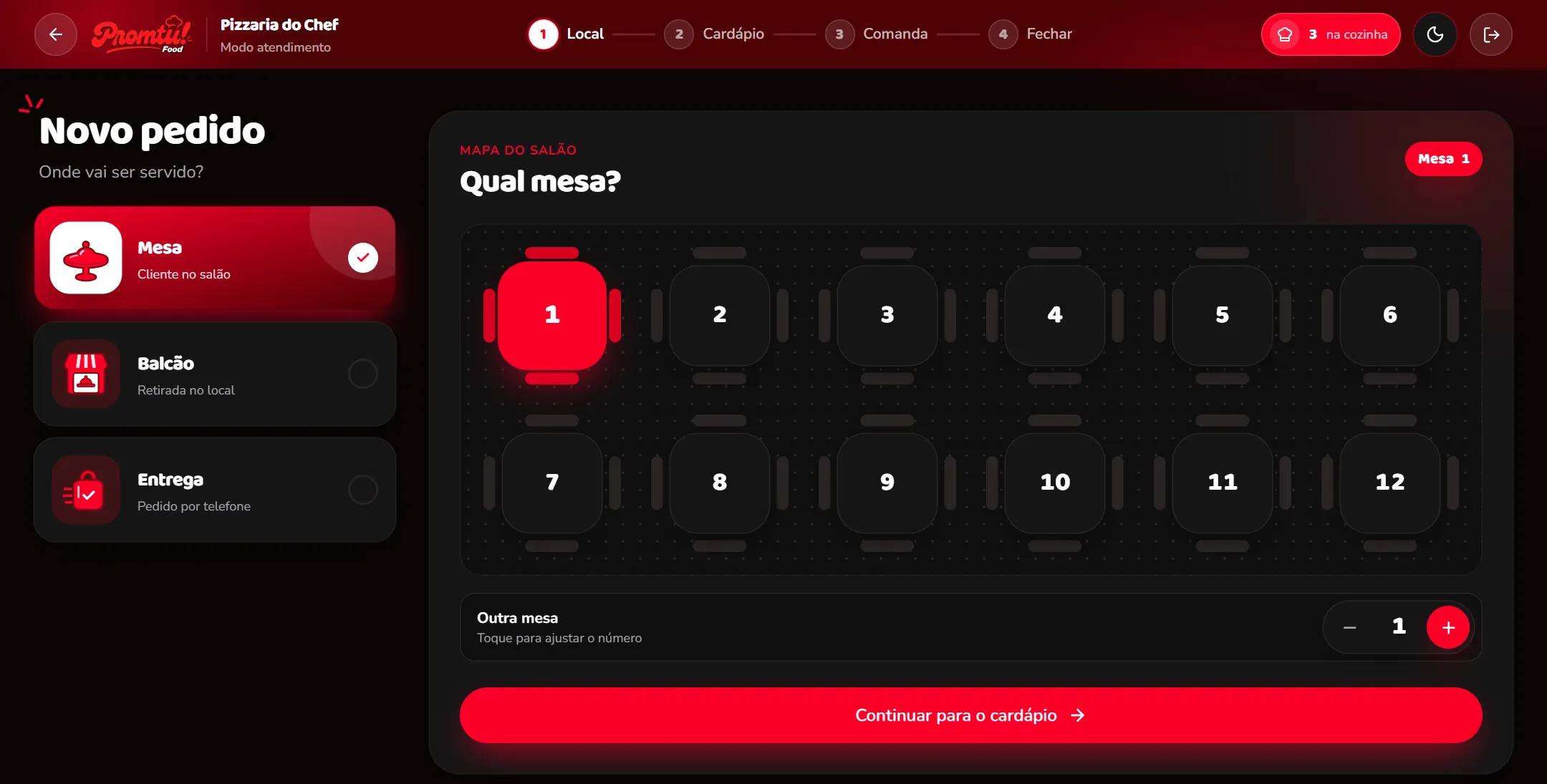
In Pedidos manuais, the team chooses where the order will be served and builds the ticket from the store’s own menu, with the same options and prices.
- Table: a map with 12 tables and the option to type another number.
- Counter: name and phone are optional. With no name, it appears as Cliente balcão.
- Delivery: the order taken over the phone, with city, neighborhood and street. The fee and the minimum order come from the menu.
Price, stock and numbering are calculated by the server. Payment is in person (Pix, cash or card) and a manual order does not follow the store’s hours or pause, because the counter can serve at any time.
Table and counter orders enter as pickup, with the table written in the note. This path does not accept coupons, online payment or scheduling. For a table order placed by the customer, there is the on-site ordering channel.
In the dashboard (interface in Portuguese): Vendas › Pedidos manuais
Coupons
Discounts with rules, so you decide how much to give up
The customer types the coupon in the cart. The discount shows before checkout, but the value that counts is recalculated by the server when the order is placed.
- Percentage10%
With a discount cap, if you want to limit the amount.
- Fixed amountR$ 8
A discount in reais, the same for any order that meets the rules.
- Free deliveryDelivery
Zeroes the delivery fee. It does not affect the value of the products.
The values above are only examples of how each type appears. The restaurant sets the percentage and the amount.
Code and limits
A code of 3 to 30 characters, unique per store. Minimum order, validity period and a total limit of uses.
Per-customer limit
Customers are identified by the phone number given on the order. Someone who changes phone numbers gets past the limit, so use it with that in mind.
Against guessing
The server limits lookups per IP so nobody can test codes in sequence.
Each order accepts one coupon. It does not apply to orders entered by the team, there is no coupon per product or category and the dashboard has no report per coupon.
In the dashboard (interface in Portuguese): Vendas › Cupons
Stock
A sale reduces the stock, a cancellation returns it
Each product can have unlimited stock, which is the default, or stock controlled by quantity, with a minimum (the default is 5). When the order is created, the deduction is automatic and atomic: if an item is missing, the whole order is refused instead of selling something that does not exist.
- Manual entries and exits, to correct what changed outside the system.
- Canceling the order returns the quantity, only once.
- The Stock screen shows gauges, low-stock alerts and the value of the stock, calculated at the selling price.
- What the dashboard does not do
- A product with zero quantity keeps showing on the menu, with no sold-out badge, although the order is refused. In combos, only the main product is deducted. There is no movement history, cost, supplier or batch, and the low-stock alert is visual, inside the Stock screen.
In the dashboard (interface in Portuguese): Catálogo › Estoque
After closing time
The numbers for the day, the month and all time
The Dashboard shows today’s orders and sales compared with yesterday, average ticket, revenue for the month, the week’s sales, what is in the kitchen now, the latest orders and the five best-selling products of the month.
- Reports: in Relatórios you pick one of those periods and see revenue, number of orders, average ticket and peak hour.
- A chart by hour or by day, a split between Pix, card and cash, delivery, pickup and on-site orders, and the top 10 products.
- Canceled orders are left out of the totals.
The numbers are calculated when you open the page and do not follow orders live. There is no free date range, comparison between periods or export to PDF or spreadsheet.
In the dashboard (interface in Portuguese): Dashboard or Relatórios
Customers and reviews
Who buys, how much they spent and what they thought
A customer is created from the order, by phone number. The list shows total spent, number of orders and last purchase, with a podium of the three who buy the most and a summary of who bought again (two orders or more). You can search by name or phone.
After delivery, the customer can give 1 to 5 stars and write a comment. The dashboard shows the average rating, the distribution of ratings and a wall of testimonials.
- No individual customer record, segmentation, campaigns, points or cashback.
- A counter order without a phone does not create a customer in the list.
- Reviews are private: they do not appear on the menu and are not requested from the customer automatically.
- No export of the list.
In the dashboard (interface in Portuguese): Clientes › Clientes or Clientes › Feedbacks
Team
Everyone sees what they need
Administrator
Access to everything, including the team. The last administrator of a store cannot be removed.
Manager
Everything in the store except team management.
Attendant
Orders, manual orders, delivery, on-site orders, customers, reviews and conversations. Does not see coupons, the dashboard or settings.
Waiter
Only the On-site orders menu. See what they can do.
- Single-use invite link: each person creates their own password, nobody has to share a login.
- Deactivating a person ends their sessions immediately.
- Individual adjustments exist only for conversations, the copilot, quick replies, the wallet and creation tools. Access to orders, delivery, coupons, payments and printing follows the role.
In the dashboard (interface in Portuguese): Configurações › Equipe e permissões (só administrador)
Questions about this feature
Do I need to keep a screen open to receive orders?
Is there a step to accept or reject an order?
Are the reports real time?
Can I print the ticket?
Does the coupon work on orders the team enters?
To check the details
Feature sheet for this page
Requirements, limits and the path in the dashboard for each feature. Open the ones you need.
Live order centerReady to use
Delivery and pickup orders arrive by themselves on a board (Received, Preparing, Ready, Finished) or in a list, with a sound alert.
Works with the restaurant’s own setup.
What it does
- Real-time updates, board or list (saved per person), drag-and-drop cards and tabs by stage on the phone.
- Each card shows the waiting time: yellow at 15 minutes and red at 30.
- An order drawer with items, notes, customer, address and payment, and a button to print the ticket.
- Stages have safety rules against a wrong tap and against two people editing the same screen.
- Cancellation with an optional reason: the details of a canceled order show who canceled it, when, and which stage it was in.
What must be ready first
- Administrator, manager or attendant profile.
Limits
- The sound alert plays only while the Orders screen is open, and it is a single beep.
- Late is only the color of the timer, with no notice to the customer.
- There is no formal accept or decline step. Canceling an order does not refund an online payment: it opens a refund request that an authorized person has to approve, and the refund only counts once the provider confirms it.
In the dashboard (interface in Portuguese): Vendas › Pedidos
Related: Manual orders (counter, table and phone), Automatic ticket printing, Reports and dashboard
Manual orders (counter, table and phone)Ready to use
The team enters table, counter and phone orders in the same system, with price and stock calculated by the server.
Works with the restaurant’s own setup.
What it does
- A table map, a counter with an optional name, or delivery with the menu’s fee and minimum order.
- Payment by Pix, cash or card.
What must be ready first
- Administrator, manager or attendant profile.
Limits
- No coupon, no online payment and no scheduling on this path.
- Table and counter orders enter as pickup, with the table in the notes.
In the dashboard (interface in Portuguese): Vendas › Pedidos manuais
Related: Live order center, On-site orders with QR Code
Discount coupons and free shippingReady to use
A coupon by percentage, fixed amount or free shipping, with a minimum order, period and usage limits.
Works with the restaurant’s own setup.
What it does
- A code of 3 to 30 characters, unique per store, with an optional discount cap.
- A total usage limit and one per customer (by the phone on the order), a period and a minimum order.
- A discount preview at checkout, recalculated on the server when the order is finalized.
What must be ready first
- Administrator or manager profile.
Limits
- One coupon per order. It does not apply to orders entered by the team.
- No coupon per product or category and no report per coupon.
In the dashboard (interface in Portuguese): Vendas › Cupons
Related: Products, options, combos and promotions, Online payment into the store’s account
Stock controlReady to use
A quantity per product, deducted automatically on ordering and returned on cancellation.
Works with the restaurant’s own setup.
What it does
- Unlimited stock (default) or controlled, with a minimum and low-stock alerts on the screen.
- Manual stock in and out. Running out of stock refuses the whole order.
What must be ready first
- Administrator or manager profile.
Limits
- A product with zero quantity stays visible.
- No movement history, cost, supplier or batch. In combos, only the main product is deducted.
In the dashboard (interface in Portuguese): Catálogo › Estoque
Related: Products, options, combos and promotions, Live order center
Reports and dashboardReady to use
Sales for the day and the month, average ticket, peak hour, payment methods and best sellers.
Works with the restaurant’s own setup.
What it does
- A dashboard with today’s orders and sales, a comparison with yesterday, the week and the month’s best sellers.
- Reports by period (today, 7 days, month, total) with a chart by hour or day, delivery versus pickup and on-site orders.
What must be ready first
- Administrator or manager profile.
Limits
- The numbers are calculated when the screen opens, not live.
- No free date range, comparison between periods or export.
In the dashboard (interface in Portuguese): Dashboard or Relatórios
Related: Live order center, Customers and reviews
Customers and reviewsReady to use
A list of customers by how much they bought and reviews from 1 to 5 stars sent after the order.
Works with the restaurant’s own setup.
What it does
- Customers with total spent, number of orders and last purchase, and a summary of who came back to buy.
- A review with a rating and a comment, an average rating and a wall in the dashboard.
What must be ready first
- Administrator, manager or attendant profile.
Limits
- No individual profile, segmentation, campaigns, points or cashback.
- Reviews are private and are not requested from the customer automatically.
In the dashboard (interface in Portuguese): Clientes › Clientes or Clientes › Feedbacks
Related: Reports and dashboard, Customer account on the menu
Team and permissionsReady to use
Administrator, manager, attendant and waiter, with an invitation link and individual adjustments for some functions.
Works with the restaurant’s own setup.
What it does
- A single-use invitation link, role changes, deactivation (which ends sessions) and protection of the last administrator.
- Per-person adjustments for conversations, copilot, quick replies, wallet and creation tools.
What must be ready first
- Administrator profile.
Limits
- Individual adjustments do not change access to orders, delivery, coupons, payments or printing. There are no custom roles.
- Deciding on the refund of an online payment belongs to the administrator. A manager only decides if the administrator grants that permission; attendants and waiters never do.
In the dashboard (interface in Portuguese): Configurações › Equipe e permissões
See also
- On-site orders with QR CodeA dedicated address and a stable QR Code for orders placed from the table, a menu of its own for the dining room team, a waiter profile and access statistics without cookies. One QR Code per store, not per table.
- Digital menuOnline menu with its own link, the store’s visual identity, options and add-ons, promotions, cart and live opening status.
- Online paymentsOnline payment through the provider the restaurant connects with its own credentials (Asaas, Mercado Pago or Stripe), confirmed by an authenticated notice and a lookup, plus the pay-on-delivery options. Canceling an order paid online opens a refund request that an administrator or authorized manager approves; it goes to the provider 5 minutes later, with a chance to undo.
- Automatic printingA Windows program that prints the ticket on the restaurant’s thermal printer, separates sectors, reprints a copy and never repeats an order when in doubt.
- Delivery managementDeliveries by city and neighborhood with their own fee, estimated time and minimum order, free shipping, pickup, a deliveries board and tracking for the customer.
- Conversation centerA single inbox for WhatsApp and the menu chat with statuses, assignment, search, internal notes, quick replies and a copilot that summarizes and suggests answers without sending anything to the customer.